
Transferring a movie to a USB flash drive means copying a file from one storage device to another. The process seems simple, but two technical issues cause most failures: the drive’s file system and the video codec’s compatibility with the playback device. Understanding these two concepts helps you avoid error messages and hours wasted reformatting or converting files.
USB flash drive file systems: FAT32, NTFS or exFAT
The file system determines how the drive organizes data. Three formats are commonly available, and each comes with its own limitations.
FAT32 is the most common format on USB flash drives sold in stores. Its main limitation is that it cannot store any individual file that is four gibibytes or larger. A high-definition movie often exceeds this limit, triggering a message such as “file too large” even when the drive shows plenty of free space.
NTFS, the native Windows file system, removes this size limit. It works well when the drive is used exclusively with Windows computers. However, macOS cannot write to an NTFS drive without third-party software.
exFAT is the best compromise if you want to transfer movies to a USB flash drive that works with both Windows and Mac. It supports large files and is compatible with most recent systems. Before reformatting, check that the destination device (TV, car stereo or media player) supports this format.

Reformat a USB flash drive without losing your data
Changing a drive’s file system erases all its contents. The only reliable precaution is to first copy everything on it to a temporary folder on your computer.
Steps for Windows
Plug in the drive, open File Explorer, right-click the corresponding drive, then select “Format.” From the “File system” drop-down menu, choose exFAT (or NTFS if the drive will only be used with Windows computers). Check “Quick Format” and confirm.
Steps for macOS
Open Disk Utility (in the Applications folder, then Utilities). Select the drive in the sidebar, click “Erase,” then choose exFAT as the format. Confirm the operation. Once formatting is complete, safely eject the drive before removing it to avoid file corruption.
Copy the video file: drag and drop or use the command line
Once the drive is formatted correctly, transfer the movie by dragging and dropping it from the source folder to the drive. This method works with any video file (MP4, MKV, AVI) on both Windows and Mac.
If the transfer stops or slows down significantly with files several gigabytes in size, the drive’s write speed is often to blame. USB 2.0 flash drives transfer data much more slowly than USB 3.0 drives connected to a compatible port.
For regular transfers of large files, checking the file after copying helps ensure it hasn’t been corrupted. Comparing the size of the source file with the copied file is the quickest check. If the two values match down to the byte, the transfer is intact.
Playing a movie on a TV: codec and format are not the same thing
A movie copied successfully to the drive may still fail to play on a TV. The reason is the distinction between the video container and the codec.
The container (MP4, MKV, AVI) is the file’s wrapper. The codec (H.264, H.265, DivX, Xvid) is the compression method used to encode the video and audio inside that wrapper. A TV may recognize the AVI container but be unable to decode the Xvid codec it contains.
Some Samsung models from the N series onward do not support DivX/Xvid in AVI files. The file extension does not guarantee compatibility with the TV. Only the manufacturer’s compatibility chart, available in the TV’s e-Manual, shows which codecs are actually supported.
Check these three things before plugging the drive into your TV:
- The drive’s file system matches the one required by the TV (often FAT32 or exFAT, depending on the brand and model)
- The movie’s video codec appears on the manufacturer’s compatibility list—not just the file extension
- The movie’s resolution does not exceed the maximum resolution supported by the TV for that specific codec
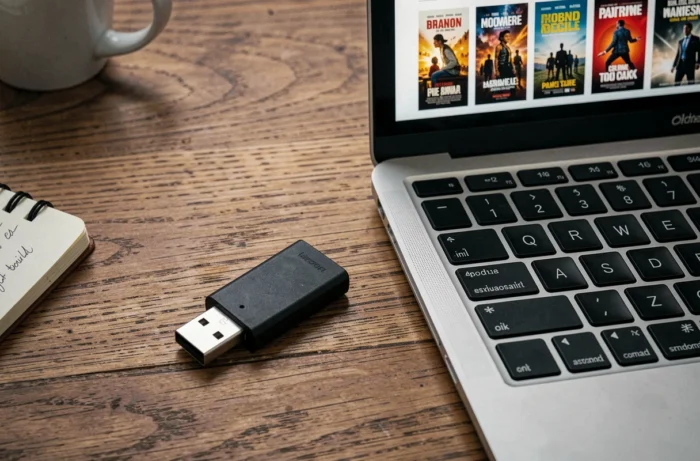
Copying a DVD to a USB flash drive: what’s different
A commercial DVD rarely contains a single video file that’s ready to copy. Its structure consists of VIDEO_TS and AUDIO_TS folders containing VOB, IFO and BUP files. Copying these folders to the drive as they are preserves the disc’s structure, but most TVs cannot play this format.
Converting the DVD content to an MP4 file before transferring it to the drive is the most universal method. VLC, available for Windows and macOS, lets you convert the video without installing any additional software. The resulting file will play on the vast majority of devices.
Conversion takes time, depending on the movie’s length and your computer’s processing power. On a recent computer, allowing around ten minutes for a standard-length movie is a reasonable estimate.
Transferring movies to a USB flash drive comes down to three technical checks: the drive’s file system supports the file size, the video codec is compatible with the playback device, and the drive is safely ejected after each copy. Taking care of these three points in advance eliminates almost all common errors.